Calendar synchronisation: your appointments become trips
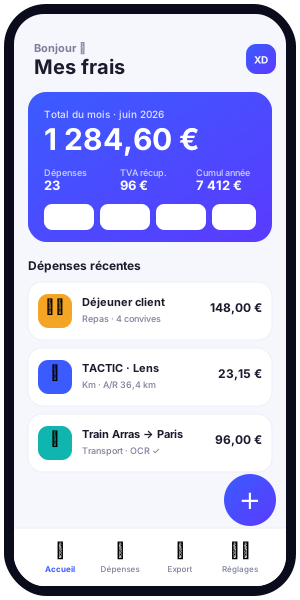
Your business trips are already planned somewhere: in your calendar. Every client meeting, every site visit, every off-site appointment corresponds to a real journey you make by car. Yet when it comes to claiming your mileage expenses, you start all over again: you re-enter the dates, the addresses, the distances. It is slow, tedious and a source of omissions. Kwevio removes this double entry thanks to calendar synchronisation: your appointments are automatically turned into trips that are ready to claim.
This article explains how to connect your calendar to Kwevio, whether through the Google Calendar connection in a single tap or through importing an .ics file exported from Outlook, iCloud or any other calendar. You will discover how Kwevio detects appointments that include a location, how it calculates the road distance, and how all of this strictly respects your privacy.
Why connect your calendar to Kwevio
Managing business expenses relies on information you already own: your schedule. When you note a client meeting at a specific address, you are unknowingly describing a future business trip. Connecting your calendar to Kwevio means reusing that information rather than recreating it.
The benefits are immediate and concrete:
- No more double entry. Trips already recorded in your calendar no longer have to be retyped. A single source of truth, your calendar, feeds your expense report.
- Real time savings. Whereas manually entering a trip takes several minutes (date, departure address, arrival address, distance calculation), the import generates everything in a few seconds.
- Nothing is forgotten. By starting from the calendar, you capture all your geolocated appointments. Trips no longer slip through the cracks because you forgot to record them at the end of the day.
- Respect for your privacy. Kwevio works in read-only mode and on an opt-in basis: you choose what becomes a trip.
As Kwevio is a free business expense management application, available on Android, iOS and as a lightweight installable web version (PWA), this synchronisation is accessible to everyone, with no subscription and no extra cost. Whether you are a freelancer, a travelling sales representative, a craftsperson or an employee on the move, connecting your calendar turns an administrative chore into a formality of a few clicks.

The one-tap Google Calendar connection
The fastest way to connect your schedule is the Google Calendar connection. Kwevio relies on Google Identity Services, Google's official authentication system, to offer you a "one tap" connection.
How it works in practice
When you start the connection from Kwevio, a Google window appears. If you are already signed in to your Google account in your browser — which is the case most of the time — the window reuses that account directly. You have no password to enter: a single tap on your account is enough to authorise Kwevio. Within moments, your Google Calendar is connected and your appointments become available for import.
This smoothness comes from the very nature of Google Identity Services: it does not ask you to re-enter your credentials each time, it relies on the session already open in the browser. It is the same logic as when you sign in "with Google" to a third-party service, but reduced to its simplest form.
Strictly read-only access
An essential point: Kwevio's Google connection requests read-only access to your calendar. Kwevio can read the list of your appointments in order to offer them for import, but it can change nothing, move nothing and delete nothing. Your events remain intact. No writing is possible, which eliminates any risk of seeing your schedule altered by the application.
The OAuth Client ID to set up once
For the Google connection to work, Kwevio needs an OAuth identifier (Client ID). This is a technical key that identifies the application to Google. This configuration is done only once: once the Client ID is entered in the settings, the one-tap connection is available every time, with no further setup.
This mechanism is the industry standard for secure connections. The Client ID gives no access to your data: it only serves to declare that it is indeed Kwevio requesting authorisation, and it is you, at the moment of the tap, who grants read-only access to your calendar. You stay in control from end to end.
Importing an .ics file: Outlook, iCloud and the rest
Not every calendar lives on Google, and not every user wants to connect an account. That is why Kwevio offers a second, universal route: importing an .ics file.
A universal format, with no configuration
The .ics format (iCalendar) is the standard for exchanging calendars. Almost every calendar can export it: Outlook, iCloud, Google Calendar itself, Thunderbird, and most professional tools. You export your calendar — or part of it — into an .ics file, then you drop it into Kwevio. The application reads the file and offers your appointments for import.
The major advantage of this method is its simplicity: no configuration is required, no Client ID, no online authorisation to grant. You stay in charge of what you share, since you choose the contents of the exported file.
An import that works offline
Another strength of the .ics import: it works offline. The file is processed locally by Kwevio, with no connection to a remote service. On a train, abroad without data, or simply out of concern for confidentiality, you import your appointments without depending on the internet.
An important clarification about Outlook
Kwevio does not connect to Outlook through a dedicated API. Support for Outlook — like that of iCloud or any other non-Google calendar — goes exclusively through exporting and then importing the .ics file. It is a deliberately simple and respectful approach: no permanent connection to your professional mailbox, just a file that you control.
Detecting appointments with a location and converting them into trips
Once your calendar is connected (through Google or .ics), Kwevio analyses your appointments to identify those that correspond to a business trip. The criterion is simple and reliable: the presence of a location in the appointment.
Appointments with a location, ticked by default
During the import, Kwevio presents the list of your appointments. Those that include a location — an address, an establishment name, a city — are offered for import and ticked by default, because they most likely correspond to a journey. You only have to confirm.
Appointments without a location, flagged
Conversely, appointments without a location (a phone meeting, a working slot at the office, a personal reminder) are flagged and are not ticked automatically. You keep the option to include them if you wish, but Kwevio never assumes on your behalf that an event without an address is a trip. This intelligent sorting saves you from importing phantom journeys.
Conversion into mileage expenses
Each ticked appointment becomes a structured mileage expense, with:
- the date of the appointment, taken automatically from the calendar;
- the departure address, which corresponds to your default address configured in Kwevio;
- the arrival address, which corresponds to the location of the appointment.
In other words, an appointment "Client visit — 12 rue de la Gare, Arras" on a given date is turned, in a single import, into a complete trip: from your usual starting point to the client's address, on the right date. All that remains is for you to check and save.
Automatic distance calculation
A trip is only valuable, for your mileage expenses, if it is associated with a distance. Kwevio can take care of this automatically.
If the distance calculation key (OpenRouteService) is configured in your application, Kwevio calculates the road distance as soon as you import. This is not a "straight line" distance, but indeed the journey by road between your departure address and the location of the appointment — the distance actually travelled, the one that counts for your reimbursement.
In practice, as soon as you import your appointments, each trip arrives with its distance already filled in. You have no map to consult and no calculation to do by hand. The mileage scale then applies on a reliable and consistent basis. If you have not configured this key, you can still enter the distance manually, but the automation saves you considerable time on large claims.
Privacy and security
Synchronising a calendar touches sensitive data: your schedule, your clients, your movements. Kwevio was designed to respect your privacy at every step.
- Read-only. The Google connection requests only read access. Kwevio cannot create, modify or delete a single event in your calendar.
- Systematic opt-in. Nothing is imported without your confirmation. You see the list of appointments, you untick those you do not want, and it is you who triggers the import.
- Local, offline .ics import. If you go through an .ics file, the processing happens on your device, without transmitting your calendar to a third-party service.
- You choose the scope. With an .ics export, you decide exactly which date range or which calendars you share with the application.
This "read-only and opt-in" philosophy guarantees that your schedule stays under your control. Kwevio is a tool that serves your expense report, not a tracker of your activity.
The web case versus the native application
It is useful to understand a technical nuance in order to make the most of Kwevio's calendar synchronisation, especially in its web version.
On the web (the installable PWA), Kwevio does not read your phone's "system" calendar the way a fully native application would, accessing the device's calendar directly. The browser does not grant that direct access, for security reasons. But this deprives you of nothing essential: the two routes offered by Kwevio — the one-tap Google connection and the .ics import — cover all needs.
If your appointments are in Google Calendar, the one-tap connection gives you access to everything, instantly. If they are elsewhere (Outlook, iCloud, a company calendar), the .ics export bridges the gap without any limitation. You therefore get the same result — your appointments turned into trips — whatever version of Kwevio you use.
Concrete time savings every day
To measure the value of synchronisation, let us take a realistic example. Imagine a sales representative who has fifteen client meetings in the month, all noted in their calendar with their address.
Without synchronisation, at the end of the month, they have to create fifteen trips by hand. For each one: find the date, retype the departure address, copy the client's address, open a map to estimate the distance, transfer the figure. Count several minutes per trip, not to mention the omissions and copying errors. It is a whole evening of paperwork.
With Kwevio synchronisation, they connect their calendar (one tap for Google, or a dropped .ics file), confirm the list of appointments with a location already ticked, and obtain in a few seconds their fifteen trips, dated, geolocated and — if OpenRouteService is configured — already valued in road distance. The chore of an evening becomes the matter of a minute.
This saving repeats every month, for every user. Over a year, that means dozens of hours saved and a more reliable expense report, because no trip is ever forgotten again.
The setup steps
Here is how to connect your calendar and generate your first trips in a few minutes.
Option A — Google Calendar connection
- 1. Configure the OAuth Client ID. Once only, enter the OAuth identifier in Kwevio's settings to enable the Google connection.
- 2. Check your default address. Make sure your usual departure address is correctly entered: it will serve as the starting point for all your trips.
- 3. Start the one-tap connection. Select your Google account in the window that appears. No password to enter.
- 4. Confirm the import. Browse the list of appointments; events with a location are already ticked. Confirm.
- 5. Check the distances. If OpenRouteService is configured, the distances are already calculated. Otherwise, fill them in.
Option B — Importing an .ics file
- 1. Export your calendar. From Outlook, iCloud or any other calendar, export the desired period in .ics format.
- 2. Check your default address. As with Google, verify your departure address.
- 3. Import the file. Drop the .ics into Kwevio. The processing is local and offline.
- 4. Select the trips. Appointments with a location are ticked, those without a location are flagged. Adjust if needed.
- 5. Save. Your trips are created, dated and ready for the mileage scale.
Conclusion
Kwevio's calendar synchronisation answers a universal need of professionals on the move: never again re-entering a trip that has already been planned. Thanks to the one-tap Google Calendar connection and the .ics import compatible with Outlook, iCloud and every calendar, your geolocated appointments are turned into complete mileage expenses — date, departure, arrival, and road distance calculated automatically.
All of this while respecting your privacy: read-only, opt-in, local processing for the .ics file. You save time, you no longer forget anything, and you keep full control of your data. As Kwevio is entirely free, there is no reason to keep entering your trips by hand.
Ready to let your calendar work for you? Open Kwevio and connect your calendar right now.